
Curious about FxPro Colour Adjust? See how this chart customization tool lets traders personalize colours in the FxPro app quickly.
FxPro Colour Adjust: New Chart Customization Tool Explained

FxPro Colour Adjust is a built-in chart customization feature that lets traders modify chart colours, backgrounds, and line styles directly within the FxPro platform. It replaces default chart palettes with user-defined schemes to improve visual clarity during analysis.
Traders access the Colour Adjust tool through the chart settings menu, where individual elements such as candles, gridlines, and indicators can be recoloured separately. Changes apply instantly and can be saved as a custom template for future sessions.
Yes, the Colour Adjust feature is available on both FxPro mobile app and web platform, with minor interface differences. Availability depends on the specific FxPro platform version installed.
Adjusting chart theme and colour schemes improves readability by reducing eye strain and helping traders distinguish price action patterns faster, especially during extended monitoring sessions. Choosing higher-contrast palettes is a common practice among active traders.
Colour Adjust works alongside other chart customization options, including layout templates, timeframe presets, and indicator styling tools within FxPro platforms. Forex Bit outlines these related features below, starting with a closer look at what the Colour Adjust tool actually does.
What Is the FxPro Colour Adjust Tool?
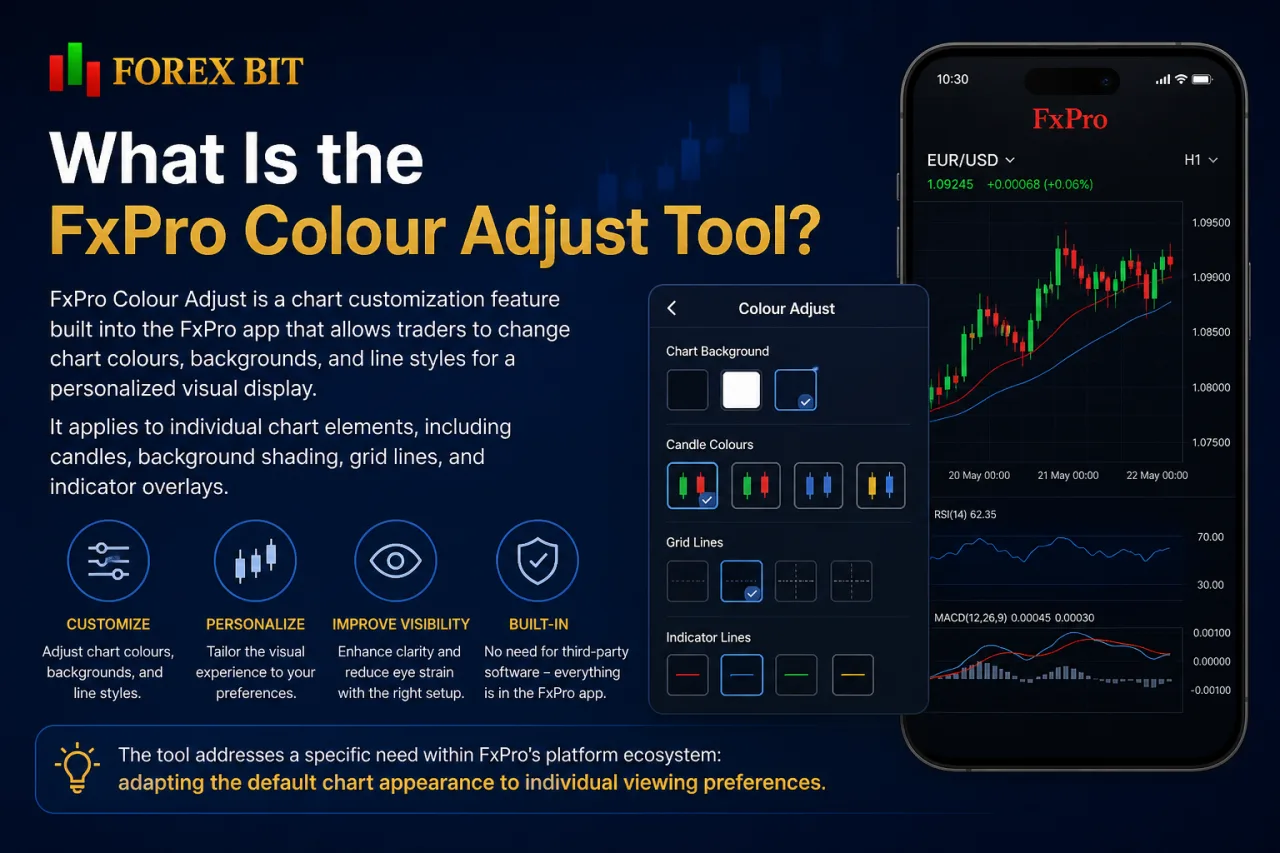
FxPro Colour Adjust is a chart customization feature built into the FxPro app that allows traders to change chart colours, backgrounds, and line styles for a personalized visual display. It applies to individual chart elements, including candles, background shading, grid lines, and indicator overlays.
The tool addresses a specific need within FxPro’s platform ecosystem: adapting the default chart appearance to individual viewing preferences without relying on third-party charting software. Rather than offering a standalone analysis suite, Colour Adjust functions as a supporting utility layered onto the existing chart interface already available in the FxPro app.
FxPro has introduced the Colour Adjust tool as part of its broader updates to in-app chart display options.
Its role stays narrow by design. The feature does not add new indicators, timeframes, or order types; it only governs how existing chart components are displayed. This keeps Colour Adjust distinct from broader FxPro platform tools, focusing solely on visual personalization rather than analytical functionality.
How to Use the Colour Adjust Tool to Customize Chart Colours?
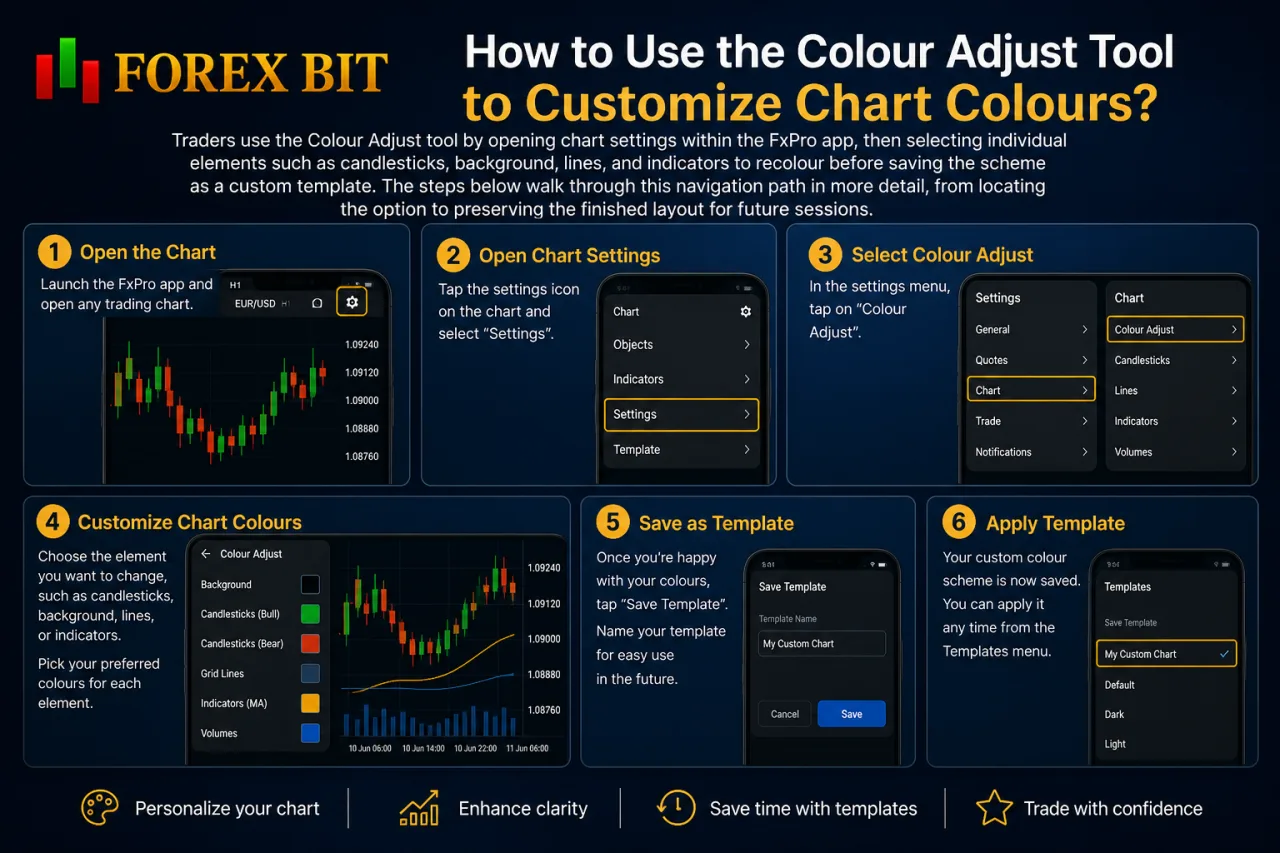
Traders use the Colour Adjust tool by opening chart settings within the FxPro app, then selecting individual elements such as candlesticks, background, lines, and indicators to recolour before saving the scheme as a custom template. The steps below walk through this navigation path in more detail, from locating the option to preserving the finished layout for future sessions.
How to Change the Chart Theme or Colour Scheme for Better Readability?
Traders change the chart theme or colour scheme in the FxPro app by opening the Colour Adjust panel and switching between light and dark backgrounds before fine-tuning contrast on candles and gridlines. This adjustment addresses readability directly, since screen glare and low-light conditions affect how quickly price movements register visually.
Dark themes reduce screen brightness for night sessions or dim rooms, while light themes suit well-lit environments and printed screenshots. Contrast adjustments work alongside the theme choice: raising the colour difference between bullish and bearish candles makes reversals and pattern breaks easier to spot at a glance.
- Selecting a dark background lowers overall screen brightness for evening or low-light monitoring.
- Selecting a light background improves visibility under bright ambient light or on higher-brightness displays.
- Increasing contrast between candle colours separates bullish and bearish movements more clearly.
- Adjusting gridline shading prevents chart clutter when multiple indicators overlap on the same window.
Once a suitable combination is set, saving it as a template keeps the same theme and contrast levels applied across future chart sessions without repeating the adjustment each time.
How to Save and Apply a Custom Colour Preset?
Traders save a custom colour preset in the FxPro app by completing the theme and contrast adjustments, then selecting the save template option within the Colour Adjust panel to store the combination for reuse. This addresses the need to reapply a chosen colour combination across chart sessions without reconfiguring each element every time.
Once stored, the preset stays linked to the chart profile. It loads automatically when the trader reopens the same chart or applies the saved template to a different instrument. This removes the need to reset backgrounds, candle colours, and gridline shading each time a new session starts.
Applying a saved preset typically follows a few steps:
- Opening the chart settings menu and locating the saved templates list.
- Selecting the desired colour preset from stored options.
- Confirming the choice to apply it across the active chart window.
- Repeating the same selection on other charts for consistent styling.
Presets remain editable after saving, allowing traders to adjust contrast or theme elements later and update the stored version without creating a separate configuration from scratch.
Is the Colour Adjust Feature Available on the FxPro Mobile App or Web Platform?
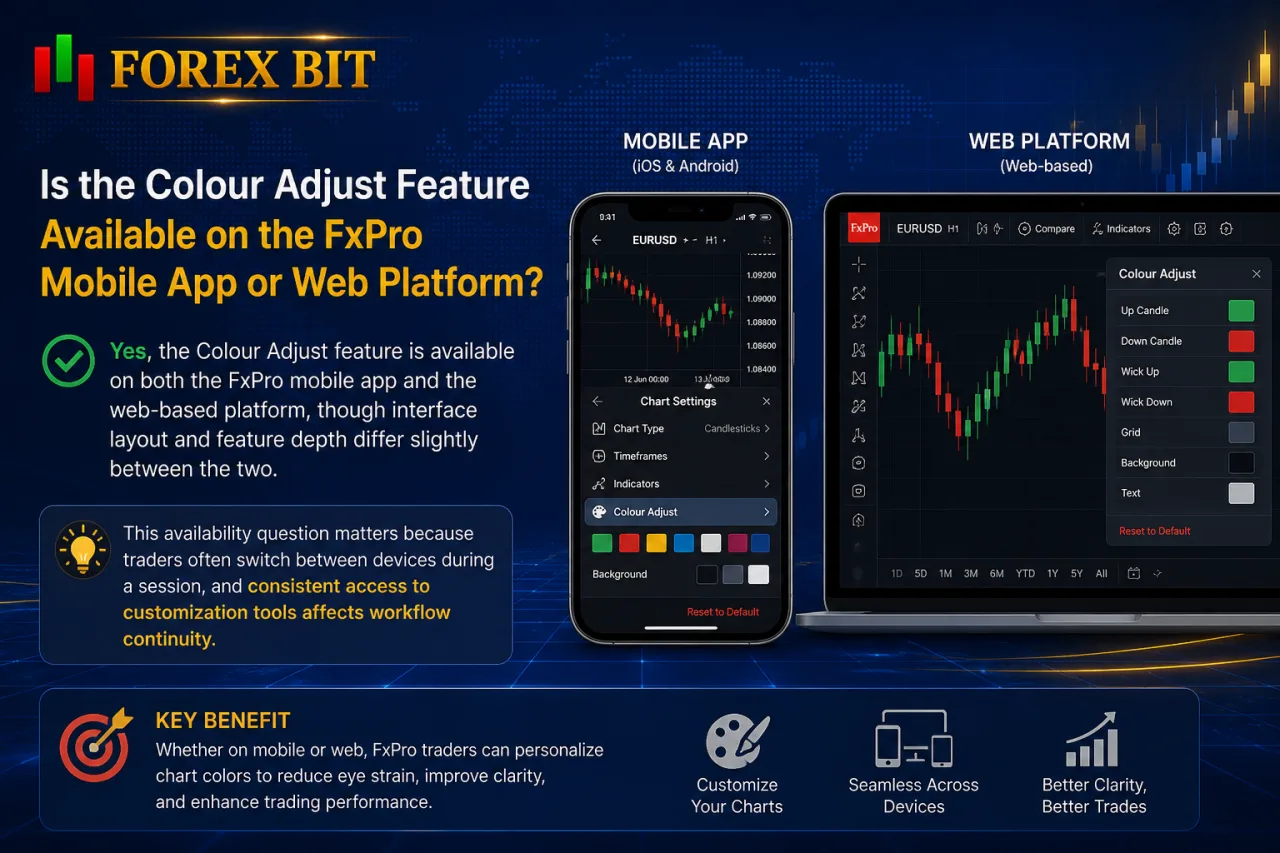
Yes, the Colour Adjust feature is available on both the FxPro mobile app and the web-based platform, though interface layout and feature depth differ slightly between the two. This availability question matters because traders often switch between devices during a session, and consistent access to customization tools affects workflow continuity.
On the mobile app (iOS and Android), Colour Adjust sits within the chart settings menu, optimized for touch input with simplified colour pickers suited to smaller screens. The web platform typically offers a broader settings panel, allowing more granular control over individual chart elements side by side, since screen space is less constrained.
Feature completeness generally stays consistent across both versions for core functions like theme switching, candle recolouring, and template saving. Minor differences can appear in how quickly new customization options roll out, as updates sometimes reach one platform version before the other. Availability may vary depending on the specific FxPro platform version installed, a note already reflected in FxPro’s general platform documentation for chart-related tools.
What Other Chart Customization Options Exist Alongside Colour Adjust?
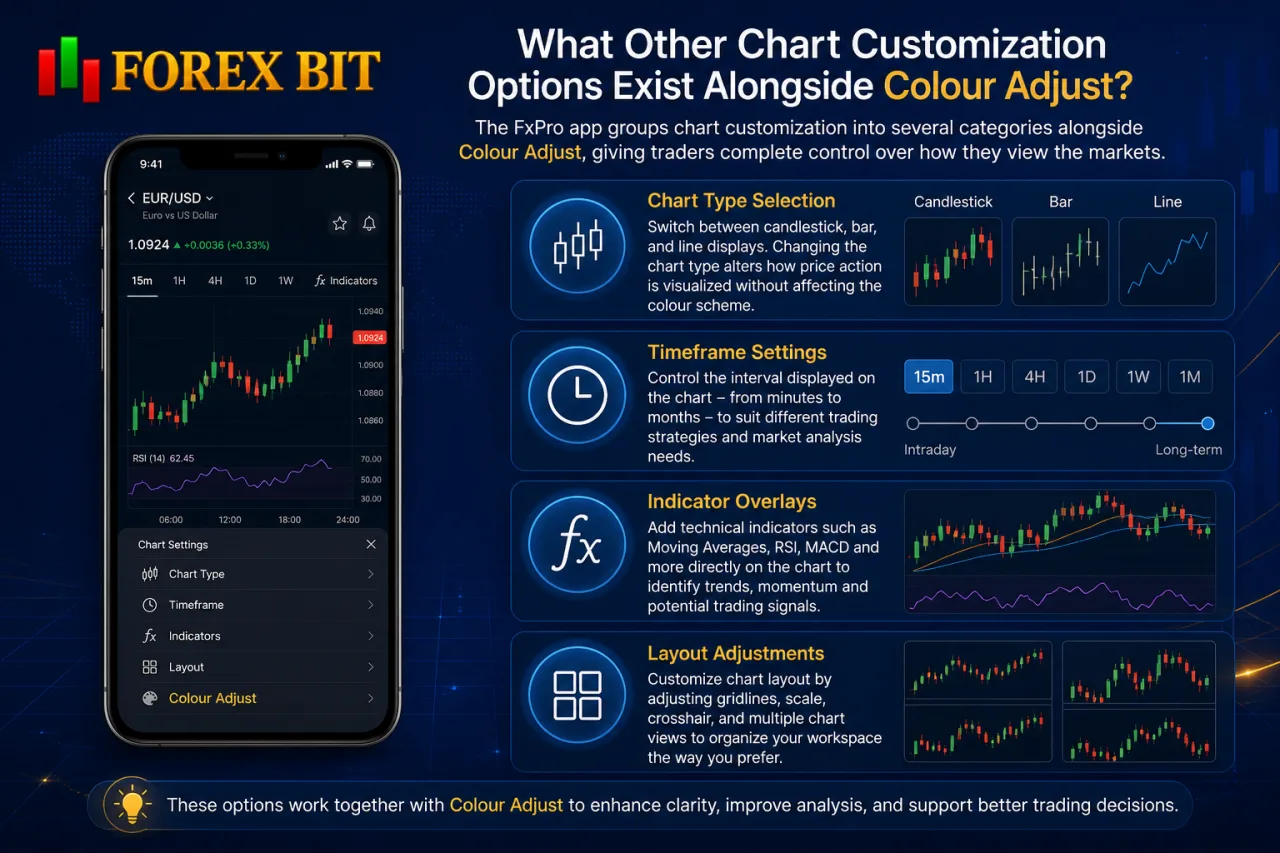
The FxPro app groups chart customization into several categories alongside Colour Adjust: chart type selection, timeframe settings, indicator overlays, and layout adjustments. These options address different parts of chart presentation rather than colour alone.
Chart type selection lets traders switch between candlestick, bar, and line displays, changing how price action reads without altering the colour scheme applied through Colour Adjust. Timeframe settings control the interval shown on the chart, from shorter intraday views to longer daily or weekly windows, and this switch stays independent of any saved colour template.
Indicator overlays add technical tools such as moving averages or oscillators onto the existing chart, with their own colour settings adjustable separately from candles or gridlines. Layout adjustments manage how multiple charts or panels arrange on screen, including split views for monitoring several instruments at once.
Each category works alongside Colour Adjust rather than replacing it:
- Selecting a chart type changes price display without affecting saved colour presets.
- Switching timeframes keeps the current colour scheme applied across intervals.
- Adding indicator overlays introduces separate colour controls layered on top of the base chart.
- Rearranging layout panels preserves individual colour settings on each chart window.
Together, these tools shape the full chart-viewing experience within the FxPro app, with Colour Adjust handling the visual styling component specifically.
What Are the Advanced Colour Customization Options Unique to Colour Adjust?
Colour Adjust includes advanced options: gradient shading, accessibility palettes, per-indicator tagging, and cross-device sync. These features address more specific customization needs than the standard light/dark theme toggle covered earlier. The subsections below detail each of these advanced capabilities individually.
Does Colour Adjust Support Colour-Blind Friendly Palettes?
Colour Adjust does not appear to include a dedicated colour-blind mode, though its manual recolouring controls let traders build a palette suited to colour vision deficiency on their own.
This distinction matters for accessibility, since a built-in colour-blind preset differs from a general customization tool that happens to allow similar results. Without a labeled accessibility mode, traders with colour vision deficiency depend on manually separating candle colours, gridlines, and indicator overlays into shades they can distinguish clearly.
- Selecting high-contrast candle colours instead of default red-green pairings reduces confusion between bullish and bearish signals.
- Recolouring gridlines separately from candles prevents overlap with the main price data.
- Adjusting indicator overlay colours independently keeps technical signals distinct from price action.
Traders with specific colour vision needs test combinations manually rather than relying on a preset accessibility palette within Colour Adjust.
Can Custom Colour Settings Sync Across Multiple Devices?
Custom colour presets sync across devices when saved to the same FxPro account, carrying the chosen theme and contrast settings from the app to the web platform and back. This sync depends on account-linked storage rather than local device memory, which is what allows the same visual setup to reappear after switching hardware.
The question of cross-device continuity matters for traders who move between a phone during the day and a desktop platform in the evening, since manually rebuilding a colour scheme each time defeats the purpose of saving it. The sync mechanism ties presets to the FxPro login profile, not to the specific device or browser used to create them.
- Logging into the same FxPro account triggers preset retrieval on the new device.
- Saved templates load automatically once the chart settings menu opens.
- Editing a preset on one device updates the version linked to the account.
Sync speed and consistency can vary slightly between platform versions, mirroring the same rollout differences already noted for mobile and web availability.
Conclusion
FxPro Colour Adjust gives traders direct control over chart appearance, covering candles, backgrounds, gridlines, and indicator overlays through a settings panel available on both the mobile app and web platform. Customization follows a simple path: pick a theme, fine-tune contrast, then save the combination as a reusable template that loads automatically on future sessions and syncs across devices tied to the same FxPro account.
While no dedicated colour-blind preset exists, manual recolouring covers similar ground. Combined with chart type, timeframe, and layout tools, Colour Adjust rounds out a personalized, readable trading display without adding new analytical functions to the platform.
William Johnson is a Forex & Broker News Analyst at Forex Bit, focusing on broker updates, regulatory developments, payment changes, and security-related news. His work helps readers stay informed about important industry developments and understand how these changes may affect broker services and trading conditions.
Email: [email protected]



Best Brokers

Trade with the world’s largest retail broker and benefit from better - than - market conditions.

We offer a superior trading environment that puts traders in the best position to profit.

Trade global markets with Interactive Brokers – a highly regulated multi-asset broker built for active and professional investors.

Invest and trade global markets with eToro – a Nasdaq-listed multi-asset platform built around social investing and CopyTrader.






Forex Bit provides independent forex broker reviews, comparisons, guides, and industry news to help traders make informed decisions.
Best Brokers
Metatrader 5 Brokers
Metatrader 4 Brokers
Lowest Spread Forex Broker
Regulated Forex Brokers
Forex Copy Trading
Ctrader Brokers
Best Forex Broker For Beginners