
Discover how to open a free MT5 demo account, test execution speed, and practice strategies risk-free before trading live. Start now.
MT5 Demo Account: How to Open & Practice Trading Free

An MT5 demo account lets traders practice on live market data using virtual funds, with no real money at risk. It mirrors the MetaTrader 5 trading environment, including charting tools, order types, and execution behavior, making it a standard first step before funding a live account.
Opening an MT5 demo account starts with downloading the MetaTrader 5 app or registering directly through a broker’s website, then selecting a demo server during account setup. The same login credentials work across desktop, web, and mobile versions, so practice sessions can continue seamlessly between devices.
Demo account features vary by broker, including starting virtual balance, execution model, and account expiry period. Some brokers reset balances automatically or extend inactive demo accounts, while others close them after a fixed number of days.
The core difference between MT5 demo and live accounts is that demo trading generates no real profit or loss, since all funds are simulated. Execution speed, slippage, and spreads on a demo account may also not fully replicate live market conditions, particularly during high volatility. Forex Bit outlines these distinctions below, starting with a clear definition of what an MT5 demo account actually is.
What Is an MT5 Demo Account?
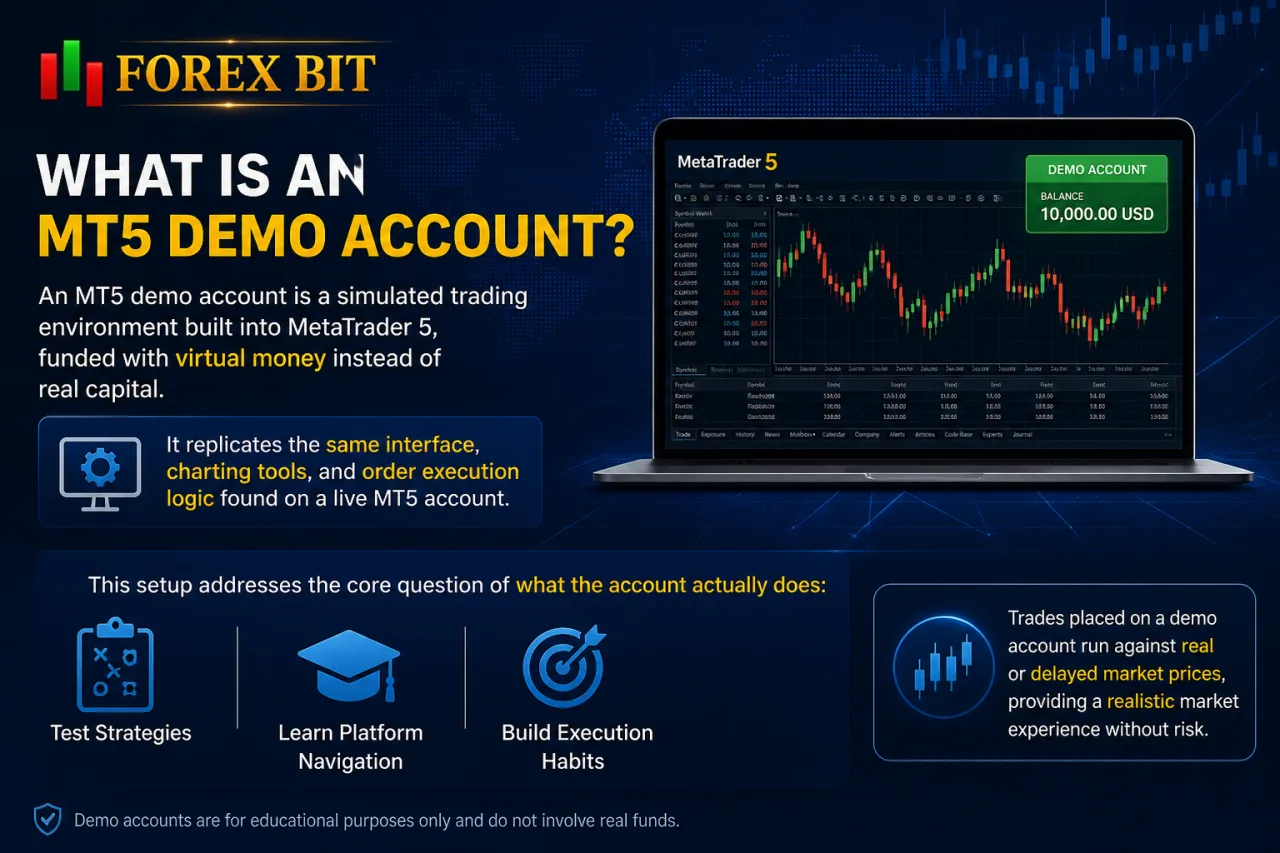
An MT5 demo account is a simulated trading environment built into MetaTrader 5, funded with virtual money instead of real capital. It replicates the same interface, charting tools, and order execution logic found on a live MT5 account.
This setup addresses the core question of what the account actually does: it lets traders test strategies, learn platform navigation, and build execution habits before committing real funds. Trades placed on a demo account run against real or delayed market pricing depending on the broker’s data feed, so price movement generally reflects genuine market conditions.
Since no real money changes hands, there is no financial risk or profit involved in demo trading. The account exists purely as a practice and evaluation tool rather than a source of actual returns.
The sections below break down how this environment is set up and how its behavior compares to a funded MT5 account.
What Features Does an MT5 Demo Account Include?
An MT5 demo account includes five core features: adjustable virtual balance, configurable leverage, access to multiple asset classes, full charting and technical analysis tools, and the same order types found on a live account. This feature set addresses what the practice environment actually contains beyond just simulated funds.
The virtual balance typically starts at a preset amount chosen during account setup, letting traders test position sizing without financial exposure. Leverage settings mirror live account options, allowing traders to simulate margin requirements and risk exposure under different ratios.
Asset class access spans forex pairs, indices, commodities, and other instruments offered by the broker, depending on which demo server is selected. Charting tools include the full suite of technical indicators, drawing objects, and multiple timeframes available on MetaTrader 5, supporting the same analysis workflow used in live trading.
Order types on a demo account match those on a live account, including market orders, pending orders, stop-loss, and take-profit instructions. This consistency lets traders build execution habits that carry over directly once they transition to a funded MT5 account.
How Do You Open an MT5 Demo Account?
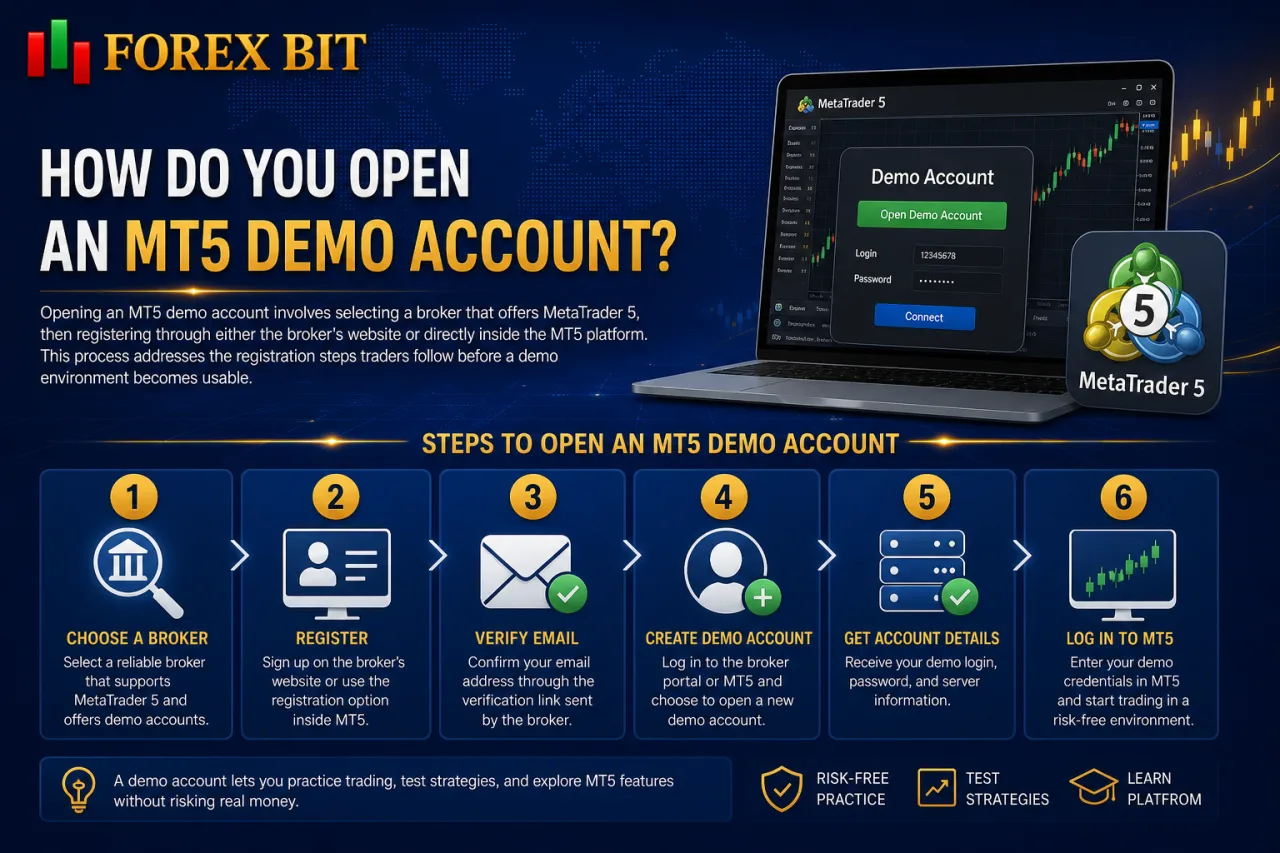
Opening an MT5 demo account involves selecting a broker that offers MetaTrader 5, then registering through either the broker’s website or directly inside the MT5 platform. This process addresses the registration steps traders follow before a demo environment becomes usable.
The steps generally include:
- Choose a broker that offers MetaTrader 5.
- Register an account through the broker’s website or directly inside the MT5 platform.
- Select the demo account option rather than a live account.
- Set the starting balance, leverage, and account currency.
- Receive the login credentials needed to access the demo environment.
Exact screens differ by provider, but this sequence stays consistent across most brokers.
The following sections break down how to select a broker offering MT5 and how to register directly through the platform itself.
How Do You Set Up MT5 Demo on Desktop?
Setting up MT5 demo on desktop follows four steps: download the MetaTrader 5 terminal, install it, open a demo account from within the platform, and log in with the generated credentials. This sequence addresses how the practice environment gets configured on a Windows or Mac terminal rather than through a browser or mobile app.
The desktop terminal downloads directly from the broker’s website or from MetaQuotes, followed by a standard installer that places the application on the local machine. Once installed, launching MT5 opens the terminal interface without any account logged in by default.
From there, selecting File > Open an Account brings up the demo registration screen inside the platform itself. This menu path lets a trader search for a broker’s server, choose the demo option, set a starting virtual balance, and select leverage before the account activates.
After registration completes, MT5 displays a login number, password, and server name, which then get entered into the terminal’s login window to connect the demo account. Saved credentials allow the terminal to reconnect automatically on future launches without repeating the setup screens.
How Do You Set Up MT5 Demo on Web Platform?
Setting up MT5 demo on the web platform involves opening MetaTrader 5 WebTrader in a browser and registering a demo account directly, without downloading or installing any software. This method addresses how the practice environment loads through a browser window instead of a desktop terminal or mobile app.
WebTrader runs the same MT5 interface, order execution logic, and charting tools as the desktop version, accessed through the broker’s website or the official MetaTrader web address. A trader without an existing login selects the demo registration option on the web login screen, then sets a starting virtual balance and leverage before the account activates.
Traders who already hold demo credentials from a desktop or mobile setup enter the same login number, password, and server name into the web version to reconnect the identical account. This shared login system keeps virtual balance and trade history consistent across web, desktop, and mobile access points.
WebTrader suits traders working on shared or restricted computers, since it avoids installation permissions and runs directly from a browser tab.
How Do You Set Up MT5 Demo on Mobile (iOS/Android)?
Setting up MT5 demo on iOS or Android involves three steps: downloading the MetaTrader 5 app from the App Store or Google Play, opening a new demo account or logging into an existing one, and navigating the mobile trading interface. This mobile setup addresses how the same practice environment runs on a phone or tablet instead of a desktop terminal or browser.
The MT5 app installs directly from the official App Store or Google Play listing, matching the same version used across brokers offering MetaTrader 5. On first launch, a trader without existing credentials taps the option to open a demo account, selects a broker’s server, sets a starting virtual balance and leverage, then confirms registration.
Traders holding demo credentials from desktop or web setups instead choose the login option and enter the same account number, password, and server name to reconnect the identical account. This keeps virtual balance and trade history synced across all three access points.
The mobile interface organizes core functions into bottom-menu tabs covering Quotes, Charts, Trade, History, and Messages. Charts support multiple timeframes and technical indicators, while the Trade tab handles order placement, including market and pending orders with stop-loss and take-profit fields, matching the order types available on desktop.
How Do MT5 Demo Account Features Compare Across Brokers?
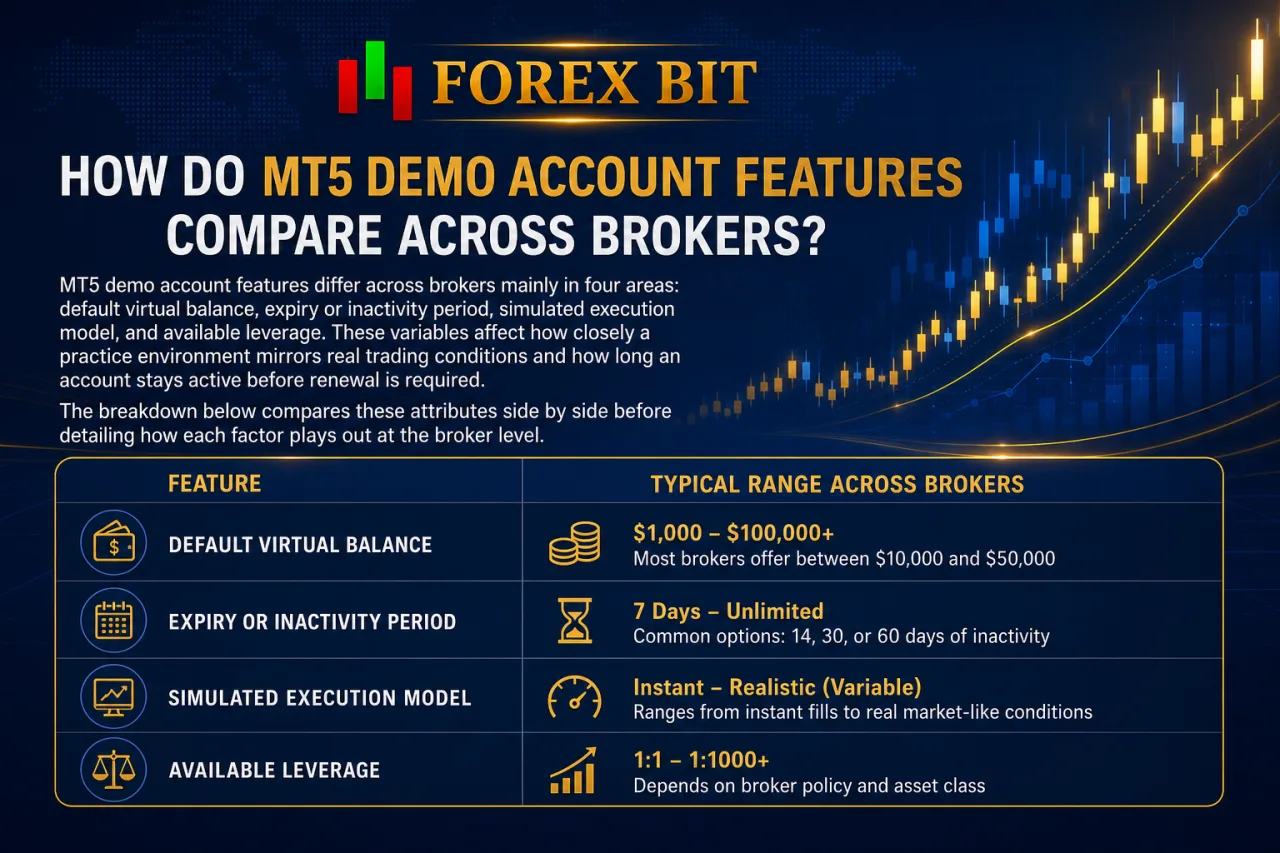
MT5 demo account features differ across brokers mainly in four areas: default virtual balance, expiry or inactivity period, simulated execution model, and available leverage. These variables affect how closely a practice environment mirrors real trading conditions and how long an account stays active before renewal is required. The breakdown below compares these attributes side by side before detailing how each factor plays out at the broker level.
| Feature | Typical Range Across Brokers |
|---|---|
| Default virtual balance | Varies from smaller starter amounts to larger preset sums, often adjustable during setup |
| Expiry/inactivity period | Ranges from a fixed number of days to indefinite validity with periodic activity |
| Execution model simulated | Market execution or instant execution, depending on the broker’s live account structure |
| Leverage options | Mirrors live account tiers, sometimes capped differently for demo environments |
| Renewal policy | Automatic reset, manual reactivation, or permanent closure after expiry |
Exact figures for default virtual balance, expiry or inactivity thresholds, and leverage caps differ from one broker to another and change over time as providers update their terms. Traders comparing these details should check each broker’s official demo account terms directly, since published figures are the most reliable source for current values rather than general estimates.
Which Demo Account Settings Can Traders Customize?
Traders can customize four core demo account settings: initial deposit amount, leverage ratio, base currency, and in some cases account type. This customization addresses which parameters shape how closely the practice environment matches a trader’s intended live trading conditions.
These four settings get selected during the registration screen, whether opening the account through desktop, web, or mobile, and they remain adjustable each time a new demo account is created.
- Initial deposit amount sets the starting virtual balance, letting a trader simulate position sizing at a specific capital level.
- Leverage ratio determines margin requirements on trades, mirroring the tiers available on the broker’s live accounts.
- Base currency defines the denomination of the virtual balance, useful for matching the currency a trader intends to fund a live account with.
- Account type, where offered, lets a trader choose between a standard demo and an ECN-style demo replicating raw spreads and commission-based pricing.
Not every broker exposes all four options during setup, so availability depends on the platform’s registration form, and this limitation applies most often to the account type option listed above. Some brokers restrict account type selection to specific server groups rather than offering an open dropdown menu.
MT5 Demo vs Live Account: What Are the Key Differences?
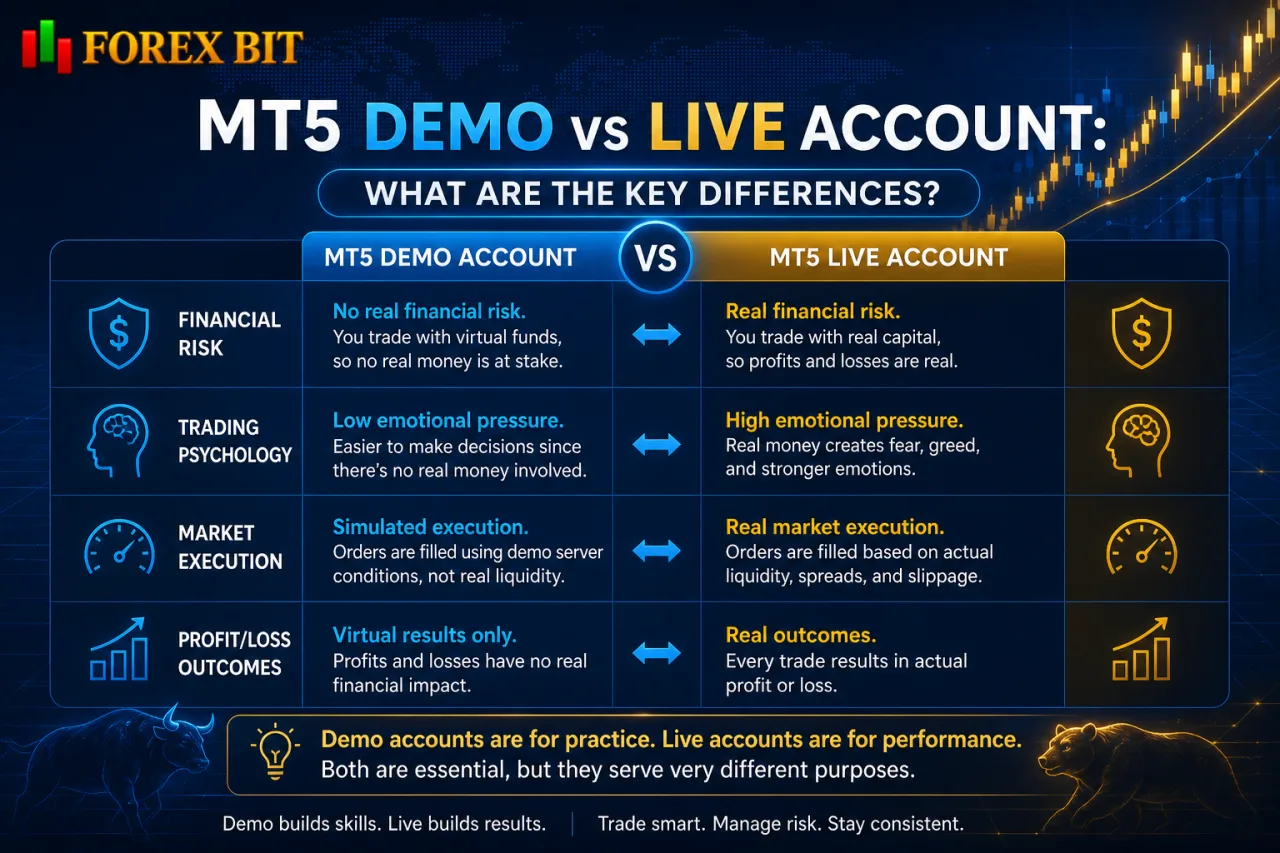
MT5 demo and live accounts differ across four core areas: financial risk, trading psychology, market execution, and profit/loss outcomes. Demo trading involves virtual funds only, while live accounts carry real capital, real emotional pressure, and execution behavior tied to actual liquidity conditions. The breakdown below separates these differences by category before comparing how each factor affects trading outcomes.
- Financial risk: A demo account uses virtual funds, so no real money is exposed regardless of trading outcome. A live account uses actual deposited capital, meaning every loss reduces real funds and every gain adds to them.
- Trading psychology: Demo trading removes the emotional pressure tied to real money, since losing a demo trade carries no financial consequence. Live trading introduces stress, fear, and hesitation that often affect decision-making in ways demo trading does not replicate.
- Market execution: Demo accounts typically fill orders at simulated prices without the slippage or latency that occur in live markets. Live accounts are subject to real liquidity conditions, meaning execution speed and fill prices can vary during volatile periods.
- Profit/loss outcomes: Because demo trades do not involve real capital, profits and losses on a demo account remain virtual and cannot be withdrawn or realized as actual money. Live accounts translate trading results directly into real account balance changes.
Can You Withdraw Profits from an MT5 Demo Account?
No, traders cannot withdraw profits from an MT5 demo account, since demo balances exist only as simulated figures with no real monetary value attached. This restriction ties back to the fundamental limitation separating demo trading from live trading: the absence of real funds.
Three reasons explain why demo profits stay locked inside the simulation:
- No deposit is made, so no real capital ever backs the demo balance.
- No broker liquidity or banking channel processes demo transactions, since withdrawal systems only connect to live trading accounts.
- No regulatory or client-fund protection applies to demo balances, as these safeguards cover real deposits only.
A demo account exists strictly to test strategies and platform navigation, not to generate transferable income. Traders looking to convert practice results into real returns need to open and fund a live MT5 account, where the same execution logic applies to actual capital.
What Advanced or Less Common Aspects of MT5 Demo Accounts Should Traders Know?
Advanced aspects of an MT5 demo account cover three areas: expiration and reactivation rules, the option to run multiple demo accounts at once, and dedicated use for Expert Advisor testing. These details extend beyond basic setup steps already covered and address how the practice environment holds up under more specialized trading workflows. The sections below break down each of these three areas individually.
Can You Test Expert Advisors (EAs) on an MT5 Demo Account?
Yes, an MT5 demo account supports running and forward-testing Expert Advisors under real-time simulated market conditions before deployment on a live account. This capability directly addresses whether algorithmic strategies can be validated risk-free within MetaTrader 5’s demo environment.
Forward-testing on demo mirrors live execution logic, since price feeds and order handling follow the same broker infrastructure used for funded accounts. Traders attach an EA to a chart, configure input parameters, and let the strategy execute trades automatically against virtual balance rather than manual intervention.
The MT5 Strategy Tester also runs within the same terminal used for demo trading, allowing historical backtesting alongside live forward-testing on the demo server. This combination lets a trader confirm an EA behaves consistently across both testing methods before committing real capital.
Demo-based EA testing carries one limitation worth noting: simulated execution speed and slippage may not fully match live conditions, particularly on volatile instruments.
How Long Does an MT5 Demo Account Stay Active Before Expiring?
Inactive MT5 demo accounts commonly get disabled after a period of inactivity, with the exact time frame depending on the broker’s own policy. This expiry timeline addresses how long a practice environment stays usable before it requires renewal or a fresh registration.
Trading activity resets this inactivity clock, so an account that sees regular logins or trades stays active regardless of its original opening date. Once the threshold passes without activity, the broker disables the account, blocking further login attempts with the existing credentials.
Reactivation and renewal generally follow two paths:
- Requesting reactivation through the broker’s support channel, where some providers restore the same login and trade history.
- Registering a new demo account directly through desktop, web, or mobile, which resets the virtual balance and starts a fresh history.
Brokers offering indefinite validity avoid this expiry issue entirely, provided the account shows periodic activity as outlined in the comparison above.
Conclusion
Opening an MT5 demo account requires nothing beyond downloading the terminal or app, registering with a broker’s demo server, and setting a starting balance and leverage before practicing across desktop, web, or mobile with the same login credentials. The environment replicates real charting, order types, and execution logic, making it suitable for building strategy and platform familiarity, testing Expert Advisors, and comparing broker-specific settings like expiry rules and balance resets, all without risking real capital or generating withdrawable profit.
Isabella Brown is the Forex Trading Guide Manager at Forex Bit, focusing on educational content about broker safety, trading costs, account types, platforms, and key Forex/CFD concepts. Her work helps readers understand trading terms, broker conditions, and practical checks before evaluating or using a brokerage service.
Email: [email protected]



Best Brokers

Trade with the world’s largest retail broker and benefit from better - than - market conditions.

We offer a superior trading environment that puts traders in the best position to profit.

Trade with the best trading conditions. WIN THE BEST TRADING ACCOUNT AWARD.

Trade global markets with Interactive Brokers – a highly regulated multi-asset broker built for active and professional investors.






Forex Bit provides independent forex broker reviews, comparisons, guides, and industry news to help traders make informed decisions.
Best Brokers
Metatrader 5 Brokers
Metatrader 4 Brokers
Lowest Spread Forex Broker
Regulated Forex Brokers
Forex Copy Trading
Ctrader Brokers
Best Forex Broker For Beginners