
Curious how MetaTrader 4 Web works? See how to access MT4 in your browser, key features, and broker compatibility—no download needed.
MetaTrader 4 Web: Access, Features & Broker Support

MetaTrader 4 Web is accessed directly through a browser at a broker’s WebTrader login page, requiring no software download or installation. Traders simply enter their account credentials on the broker’s platform site and the trading terminal loads instantly within the browser window.
Not all brokers support MT4 WebTrader login, since broker support for MT4 WebTrader varies, depending on whether the broker’s server infrastructure includes a web-based terminal alongside the standard desktop platform. Forex Bit compares broker platform pages to confirm which providers actually offer a working WebTrader link rather than just desktop downloads.
MT4 Web offers core charting, order placement, and account management tools but lacks some advanced features found in the desktop version, such as full Expert Advisor automation support. The mobile app, by contrast, prioritizes simplified navigation for on-the-go monitoring over deep customization.
Trading, placing orders, and running EAs on MT4 Web is possible only for basic strategies, since the browser terminal does not support the MQL4 coding environment used for automated trading on desktop. Manual order execution, stop-loss and take-profit settings, and live position tracking remain fully functional within the web interface.
Forex Bit explains how to access MetaTrader 4 directly through a web browser, allowing traders to use the platform without downloading the desktop application. The following sections walk through the browser access process step by step.
How to Access MetaTrader 4 in a Web Browser Without Downloading?
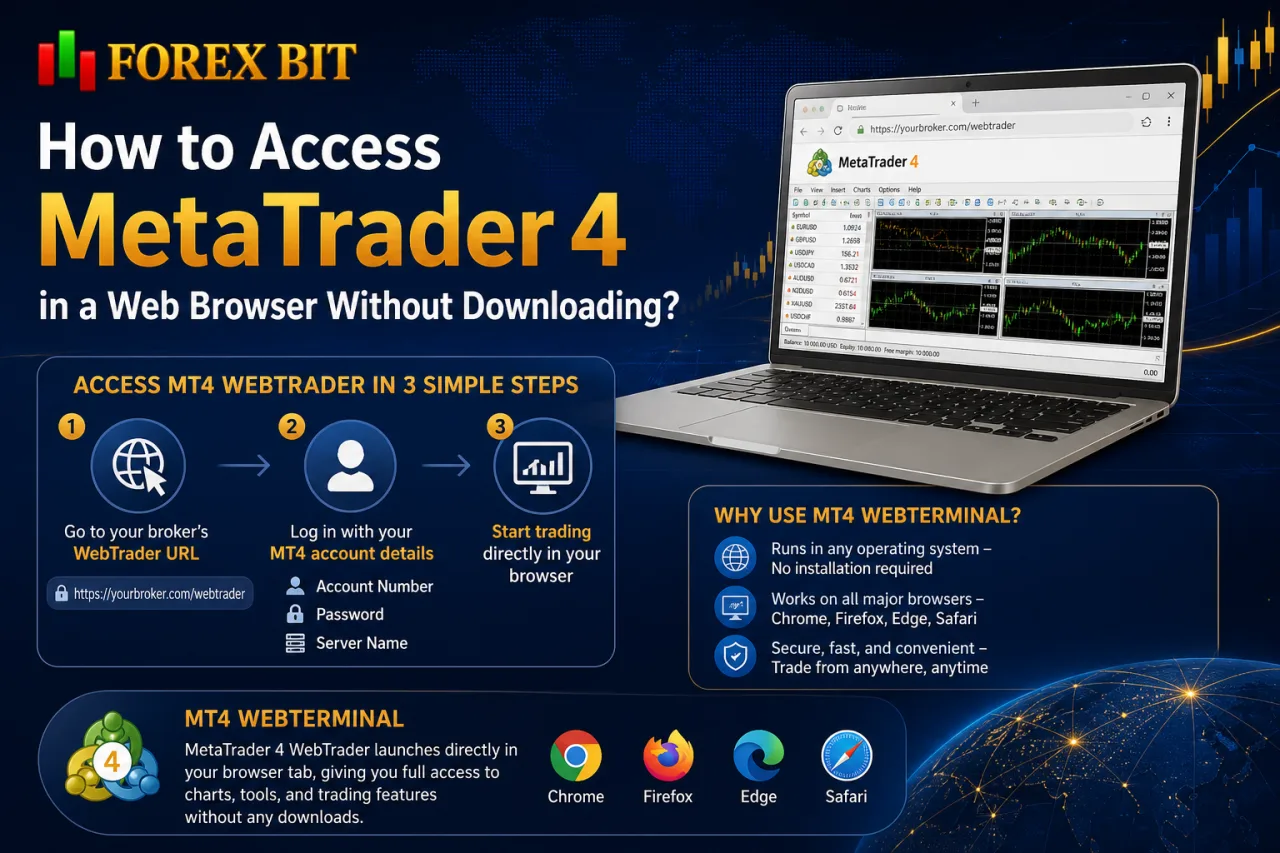
To access MetaTrader 4 in a web browser without downloading, traders navigate to the broker’s WebTrader URL and log in with an existing account number, password, and server name. This process addresses how MT4 launches directly inside a browser tab rather than through an installed desktop application.
The web terminal runs independently of operating system, since it operates through standard browser technology rather than a locally installed program. Chrome, Firefox, Edge, and Safari all support MT4 WebTrader sessions, allowing the same login credentials to work across Windows, macOS, or Linux devices.
The following subsections outline the specific access steps, including how login credentials are entered and how the platform loads once authentication completes.
What Do You Need to Log In to MT4 WebTrader?
Logging into MT4 WebTrader requires three credentials: the broker’s server name, the account login number, and the account password. These same three fields authenticate access on MT4 desktop and mobile, since the underlying account and server infrastructure remains identical across all three platform versions.
The server name identifies which trading server the broker has assigned the account to, and this value typically appears in the account confirmation email or the broker’s client portal. The login number is the numeric account identifier issued when the trading account was opened. The password field accepts either the investor password, which grants read-only viewing access, or the master (trading) password, which enables full order placement and account management within the browser session.
No separate WebTrader-specific registration or download step exists beyond entering these credentials, since the web terminal reads directly from the broker’s existing MT4 server records.
Is an Internet Connection Required to Use MT4 Web?
Yes, MT4 Web requires an active internet connection at all times, since the browser terminal runs entirely on live data streamed from the broker’s server rather than any locally installed software. This connectivity dependency defines how the web terminal behaves once a session starts.
No local installation or data storage occurs on the device, meaning charts, quotes, and open positions all render through a continuous browser-to-server link. Three practical implications follow from this design:
- Losing internet access mid-session freezes price updates and blocks new order submissions until the connection restores.
- Closing or refreshing the browser tab ends the session, requiring re-entry of the server name, login number, and password to resume.
- Stability during trading depends directly on connection quality, since a weak or intermittent signal can delay order confirmations or disconnect the terminal without warning.
Traders holding open positions during volatile market conditions face added risk from this dependency, since a dropped connection can prevent timely stop-loss adjustments or manual position closure until access returns.
Which Brokers Support MT4 WebTrader Login?
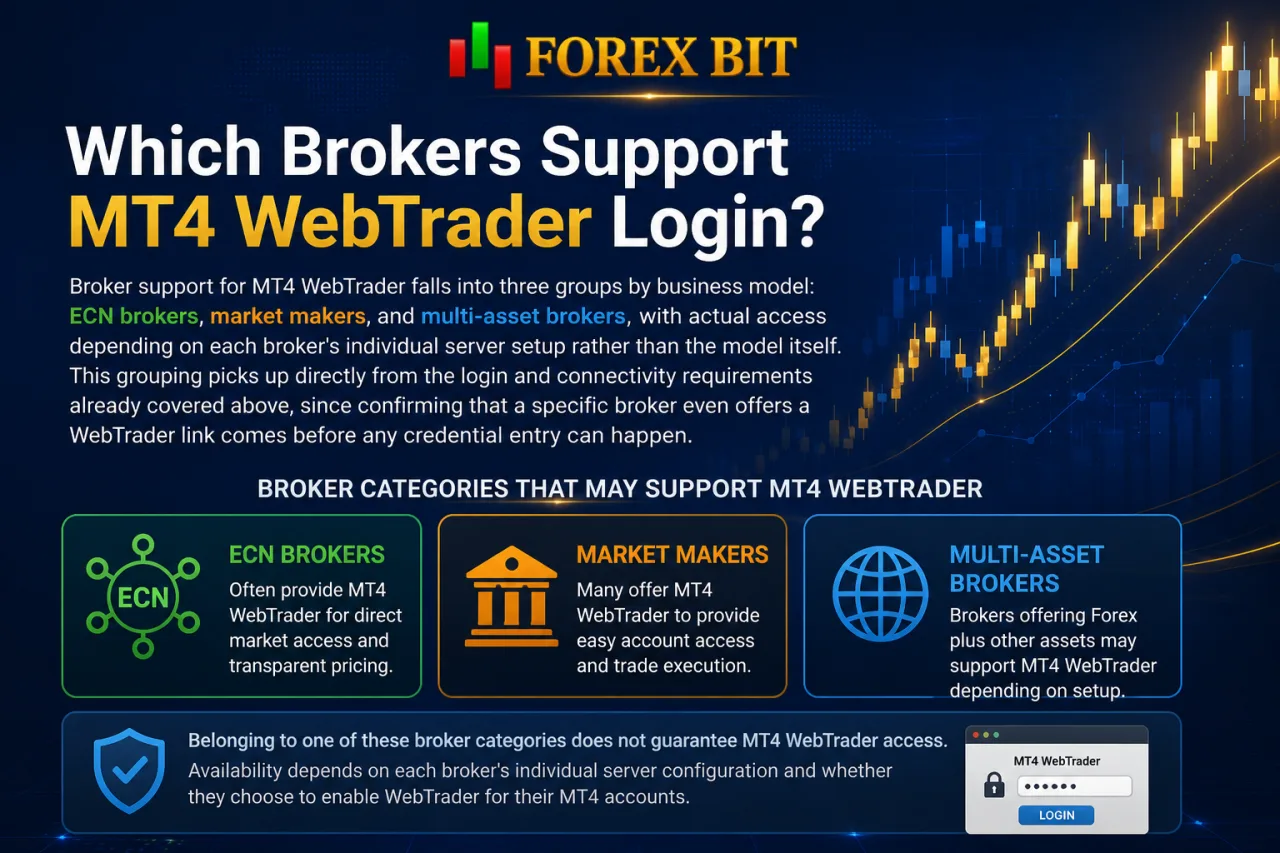
Broker support for MT4 WebTrader falls into three groups by business model: ECN brokers, market makers, and multi-asset brokers, with actual access depending on each broker’s individual server setup rather than the model itself. This grouping picks up directly from the login and connectivity requirements already covered above, since confirming that a specific broker even offers a WebTrader link comes before any credential entry can happen.
Belonging to one of these broker categories does not guarantee a working WebTrader portal, because inclusion of the web terminal remains a separate infrastructure decision each broker makes independently. The subsections below cover how traders confirm WebTrader availability for their specific broker and where the entry point typically sits within a broker’s site or client portal.
How Do You Find Your Broker’s MT4 WebTrader Link?
Traders find their broker’s MT4 WebTrader link in one of three typical locations: the client area or member portal, the broker’s platform download page, or a direct URL sent via email after account registration. This access point discovery question follows directly from confirming that a broker actually offers a web terminal in the first place.
The client area or portal remains the most common entry point, since most brokers place a “WebTrader” or “Web Platform” button alongside desktop and mobile download links once a trader logs into their account dashboard. The broker’s public platform page often lists WebTrader as a separate option next to MT4 desktop and MT4 mobile downloads, sometimes with a “Launch WebTrader” button that opens the login screen in a new browser tab.
Some brokers instead send the direct WebTrader URL by email immediately after account registration, bypassing the need to search the portal at all. Checking the welcome email, the client portal, and the platform download page covers the three main paths brokers use to expose this access point.
MT4 Web vs Desktop vs Mobile: What Are the Differences?
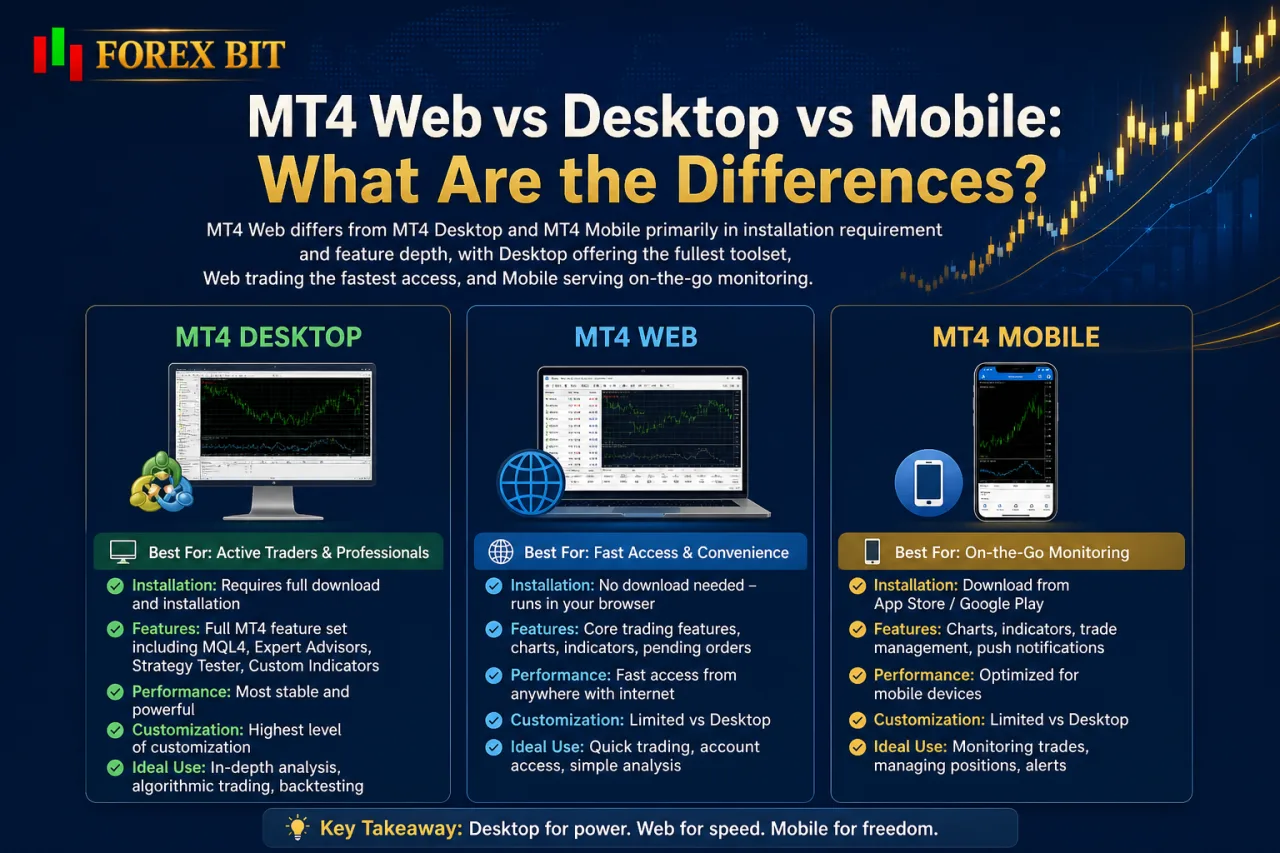
MT4 Web differs from MT4 Desktop and MT4 Mobile primarily in installation requirement and feature depth, with Desktop offering the fullest toolset, Web trading the fastest access, and Mobile serving on-the-go monitoring. This comparison builds directly on the access and infrastructure points already covered above, narrowing focus now to how the three platform versions actually differ in daily use.
Desktop requires a full download and installation but unlocks the complete MQL4 environment, Expert Advisor automation, and the widest range of chart indicators and timeframes. Web runs entirely in a browser with no installation, covering core charting and manual order placement but stopping short of EA support. Mobile installs as an app on iOS or Android, prioritizing push notifications and quick position checks over deep chart customization.
The table below summarizes these differences across the criteria most relevant to platform selection.
| Criteria | MT4 Desktop | MT4 Web | MT4 Mobile |
|---|---|---|---|
| Installation | Required (software download) | None (browser-based) | Required (app store download) |
| OS Compatibility | Windows, macOS via workaround | Any OS with a browser | iOS, Android |
| EA/Automated Trading | Full MQL4 support | Not supported | Not supported |
| Indicators/Timeframes | Widest range available | Core set only | Limited set |
| Order Types | Full range | Core order types | Core order types |
| Notifications | Platform alerts, sound | Browser-dependent | Push notifications |
| Ideal User Profile | Algorithmic and technical traders | Traders needing quick, device-free access | Traders monitoring positions remotely |
What Features Are Available on MT4 WebTrader?
MT4 WebTrader includes six core features: real-time charting, multiple timeframes, basic technical indicators, market and pending order placement, account history, and one-click trading. This feature set covers the functional scope already noted for the browser terminal, distinct from the mobile app’s simplified navigation and the desktop version’s fuller EA toolset.
Real-time charting streams live price data directly from the broker’s server, refreshing without any manual reload. Multiple timeframes let traders switch between short-term and longer-term views on the same chart window, while basic technical indicators cover standard trend and momentum tools built into the browser interface.
Order placement supports both market orders, which execute at the current price, and pending orders, which trigger once price reaches a specified level. Account history displays closed trades and past transactions within the same session, and one-click trading executes an order directly from the chart without opening a separate confirmation window.
These features together support manual trading and position monitoring, though they stop short of the MQL4 automation available on MT4 desktop.
What Features Are Missing on MT4 Web Compared to Desktop?
MT4 Web omits four features found on the desktop terminal: a full indicator library, custom indicator uploads, the Strategy Tester, and full EA scripting. This feature gap follows directly from the browser terminal’s lack of an MQL4 coding environment, already noted as the core reason automated trading stays out of reach on MT4 Web.
The indicator library on MT4 Web covers only standard trend and momentum tools, leaving out many of the specialized and community-built indicators available on desktop. Custom indicator uploads remain unavailable entirely, since the browser terminal has no file system access to install .mq4 or .ex4 indicator files.
The Strategy Tester, used on desktop to backtest an Expert Advisor against historical price data before live deployment, has no equivalent inside the web terminal. EA scripting stays limited to non-existent on MT4 Web, since running or editing MQL4 code requires the desktop application’s compiler and file structure.
Traders relying on custom indicators or automated strategies confirm desktop access separately, given that MT4 Web supports manual trading only.
How Do You Trade, Place Orders and Use EAs on MT4 Web?
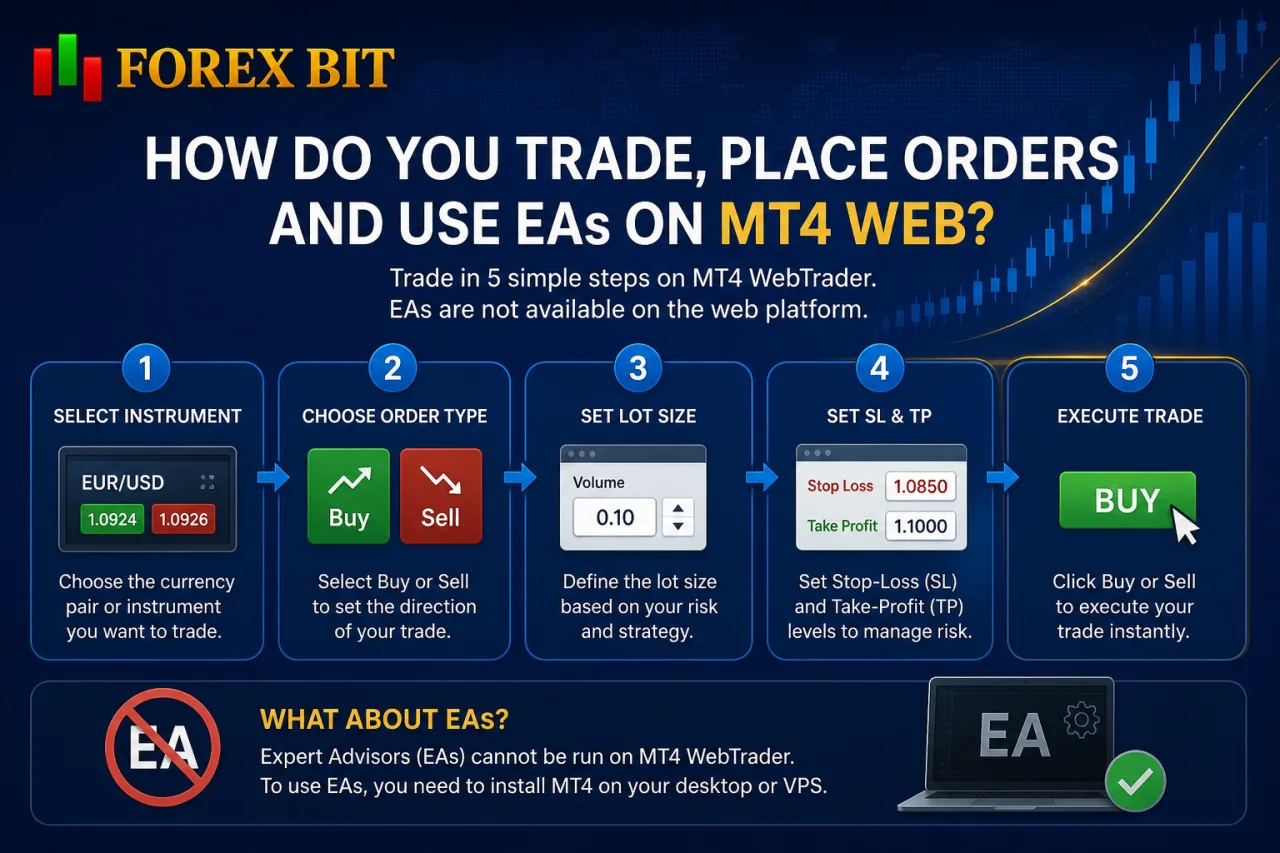
Trading on MT4 WebTrader follows a five-step workflow: selecting the instrument, choosing an order type, setting lot size, defining stop-loss and take-profit levels, and executing the trade, while automated EA trading stays unavailable within the browser terminal. This workflow question builds on the feature scope already outlined for MT4 Web, narrowing focus now to the actual sequence traders follow when placing a manual trade and to where EA support fits within that process.
The subsections below cover the manual trading steps in detail and clarify why EA execution requires switching to a desktop or VPS-hosted terminal.
What Order Types Can Be Placed on MT4 WebTrader?
MT4 WebTrader supports four order categories: market execution, buy/sell limit orders, buy/sell stop orders, and modification or closing of open positions directly from the browser interface. This order type question follows the manual trading workflow already outlined for the browser terminal.
Market execution fills a trade immediately at the current bid or ask price, without requiring a specified entry level. Buy limit and sell limit orders set an entry price below or above the current market rate, triggering only once price reaches that predefined level. Buy stop and sell stop orders work in reverse, activating a trade once price moves past a specified level in the breakout direction.
Modification and closing tools sit alongside these order types within the same interface. Traders adjust stop-loss and take-profit levels on an open position, or close it partially or fully, directly from the order panel without navigating to a separate screen.
This set covers standard manual trading needs, though it excludes any conditional or algorithmic order logic tied to MQL4 scripting on desktop.
Can Expert Advisors (EAs) Run Directly on MT4 WebTrader?
No, Expert Advisors cannot run natively on MT4 WebTrader, since the browser terminal lacks MetaEditor and the automated script execution engine required to compile and run MQL4 code. This EA support limitation follows directly from the order-type scope already outlined for the browser terminal, closing the gap between manual and automated trading on MT4.
Three factors explain this restriction:
- Missing MetaEditor blocks any writing, editing, or compiling of MQL4 scripts within the browser session.
- Absent script execution engine prevents an EA file from attaching to a chart or running in the background once loaded.
- No file system access stops .ex4 files from being uploaded or installed inside the web interface.
Running an EA requires switching to the downloadable desktop terminal, where the full MQL4 environment supports script attachment and live automated execution. A VPS running the complete MT4 desktop application serves as an alternative, keeping an EA active continuously without a local device staying powered on. Traders needing automated strategies confirm desktop or VPS access separately, since MT4 Web supports manual order placement only.
What Advanced Tools and Technical Considerations Apply to MT4 WebTrader?
Advanced technical considerations for MT4 WebTrader group into four areas: browser-side data caching, session timeout handling, security architecture, and multi-device session synchronization. These nuances sit beyond the basic access and feature comparisons already covered, addressing how the browser terminal behaves under real-world usage conditions rather than during a single login. The subsections below break down each of these four areas individually.
How Secure Is Trading via MT4 WebTrader?
Yes, trading via MT4 WebTrader carries reasonable security when a broker implements proper encryption, since SSL/TLS protocols protect login credentials and trade data during transmission between the browser and the broker’s server. This security question follows directly from the browser-side technical factors already outlined for the web terminal, isolating specifically how transmitted and stored data stays protected during a live session.
Three factors support this security posture:
Encrypting data in transit through SSL/TLS prevents interception of login credentials, order instructions, and account information as they travel between browser and server.
- Avoiding local storage of trade data keeps sensitive account details from persisting inside browser cache or device memory after a session ends.
- Authenticating each session through the server-side login number and password removes reliance on any locally saved credential file, unlike some desktop install configurations.
Reduced local-device exposure follows from this design, since no installed application or stored file remains on the device once the browser tab closes, unlike a desktop MT4 install that keeps configuration and log files stored locally.
Can You Use MT4 WebTrader and Desktop Terminal on the Same Account Simultaneously?
Yes, MT4 WebTrader and the desktop terminal run on the same account simultaneously, since both connect to the same broker trade server that synchronizes orders and positions in real time. This synchronization behavior directly addresses the multi-session capability question raised for the browser terminal.
Three factors confirm this behavior:
- Logging into the desktop terminal with the master password while a WebTrader session stays open on another device keeps both sessions active without conflict.
- Placing an order on one platform reflects instantly on the other, since the trade server pushes updates to every connected session tied to the same account number.
- Closing or modifying a position from mobile, web, or desktop updates the remaining active sessions without requiring a manual refresh.
Multiple simultaneous logins using the investor password work for read-only viewing across devices, while only sessions using the trading password submit new orders. This synchronization applies equally whether the second session runs on desktop, mobile, or another browser tab.
Conclusion
Opening MetaTrader 4 in a browser comes down to locating a broker’s WebTrader link, entering the server name, login number, and password, and maintaining a stable internet connection throughout the session. No installation ever occurs, and the terminal delivers real-time charting, core indicators, and full manual order execution, including market, limit, and stop orders, alongside position management synced instantly with desktop and mobile sessions.
Automated strategies remain outside its scope, since EA compilation and scripting require the desktop application or a VPS-hosted instance. For traders needing quick, device-independent access for manual trading, MT4 Web fulfills that role directly, while algorithmic strategies still depend on the desktop terminal.
Isabella Brown is the Forex Trading Guide Manager at Forex Bit, focusing on educational content about broker safety, trading costs, account types, platforms, and key Forex/CFD concepts. Her work helps readers understand trading terms, broker conditions, and practical checks before evaluating or using a brokerage service.
Email: [email protected]



Best Brokers

Trade with the world’s largest retail broker and benefit from better - than - market conditions.

We offer a superior trading environment that puts traders in the best position to profit.

Trade with the best trading conditions. WIN THE BEST TRADING ACCOUNT AWARD.

Trade global markets with Interactive Brokers – a highly regulated multi-asset broker built for active and professional investors.






Forex Bit provides independent forex broker reviews, comparisons, guides, and industry news to help traders make informed decisions.
Best Brokers
Metatrader 5 Brokers
Metatrader 4 Brokers
Lowest Spread Forex Broker
Regulated Forex Brokers
Forex Copy Trading
Ctrader Brokers
Best Forex Broker For Beginners